Dongle DAC won’t connect to your phone or gives no sound? An OTG compatibility troubleshooting checklist (KEYSION S1/S2 used as the example)
- First, tell which kind of “no sound” you’re dealing with
- Power: where a dongle DAC gets its “muscle”
- Android: does USB debugging have to be on?
- iPhone: why it’s both easier and pickier
- Contact and pinout: the most overlooked part
- A four-step checklist
- Wrap-up: most “no connection” is configuration, not failure
This is for anyone who plugged a USB-C dongle DAC (or OTG cable) into a phone and got silence. Short answer first: a real “won’t connect” usually falls into one of four buckets — the phone never handed USB audio to the device, power never reached it, the contacts are loose, or it’s stuck in an unsupported transfer mode. Work down the list below and most cases are found in a few minutes, no need to rush a return. Android and iPhone handle this very differently, so they’re split into separate parts.
Plug in and get nothing, and don’t rush to blame the hardware. Three common scenes: the lock-screen notification asks for a USB method and you picked “charging only”, so the phone never passes audio to the dongle; the device shows in the volume panel (an EQ icon appears) but playback is silent or cut off, usually a permission or output issue; or the dongle gives no sign at all, not even the LED, which points to power or contact. The first two get fixed in software, hardware is last.
| Phenomenon | Most common cause | Worth a return? | What it means |
|---|---|---|---|
| Notification asks for connection method, silent after “charging only” | Transfer mode not set to USB audio | No | Switch the USB mode back to “transfer files / audio” in settings |
| Recognized but no sound during playback | Output device not switched to the dongle | No | Pick the output once in the notification bar or volume panel |
| No reaction at all, LED off | Insufficient power or bad contact | A few cases | Swap port / cable / device to cross-check, hardware only at the end |
| Works once, silent after unplug and replug | Authorization reset or oxidized contacts | No | Replug and re-authorize, usually comes back |
A USB-C dongle carries no battery; it lives off the phone’s USB port. Current limits vary by handset: some older or non-OTG models only give a basic current that can’t drive a higher-draw DAC, while a decoding dongle like the KEYSION S2 normally needs the phone to recognize it as a “USB audio device” and supply enough power. Community tests such as LibreAudio show many “silent” cases restored after switching to an OTG-capable phone or a quality OTG cable. The typical sign of weak power is: LED on, audio on and off, sound softens at higher volume — not complete silence.
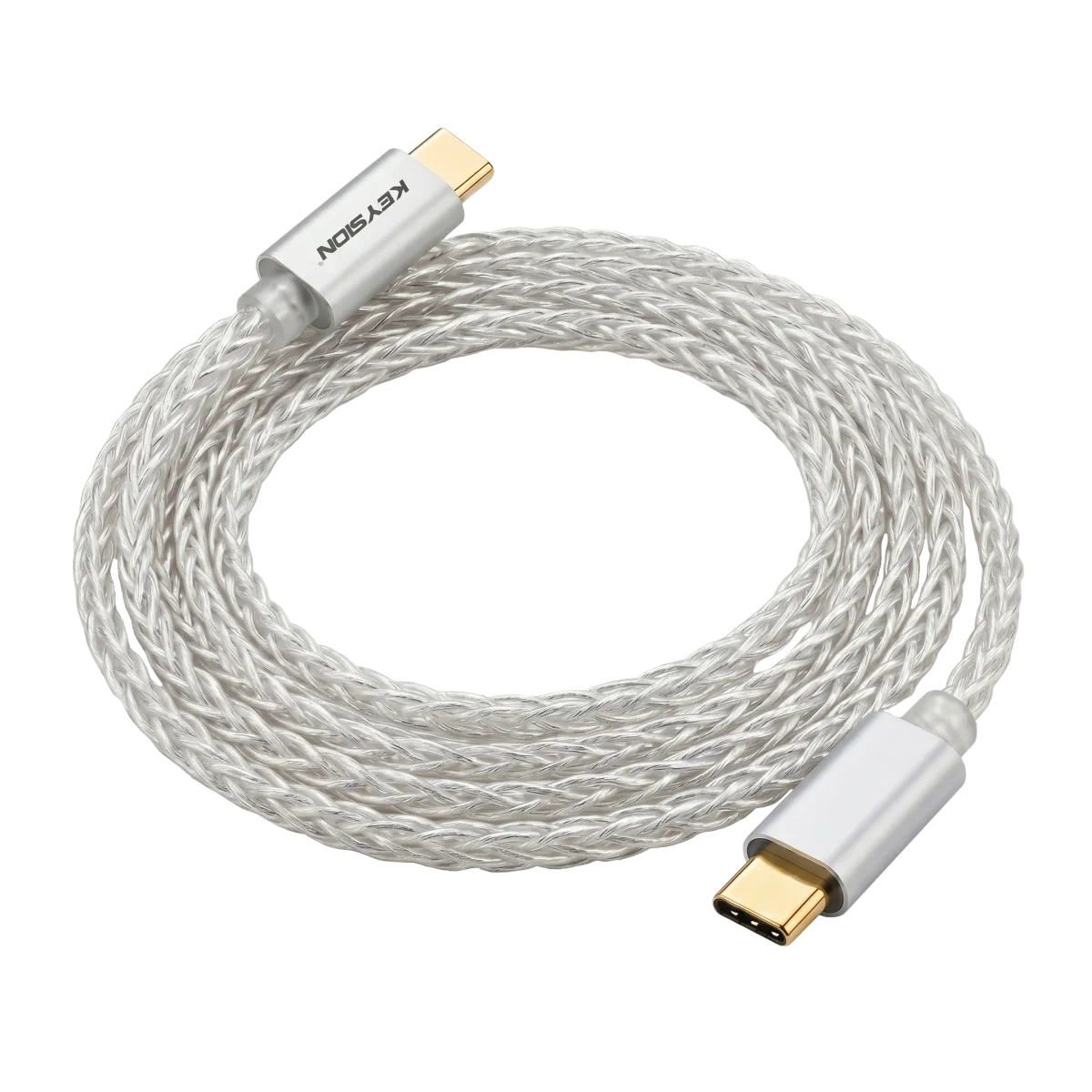
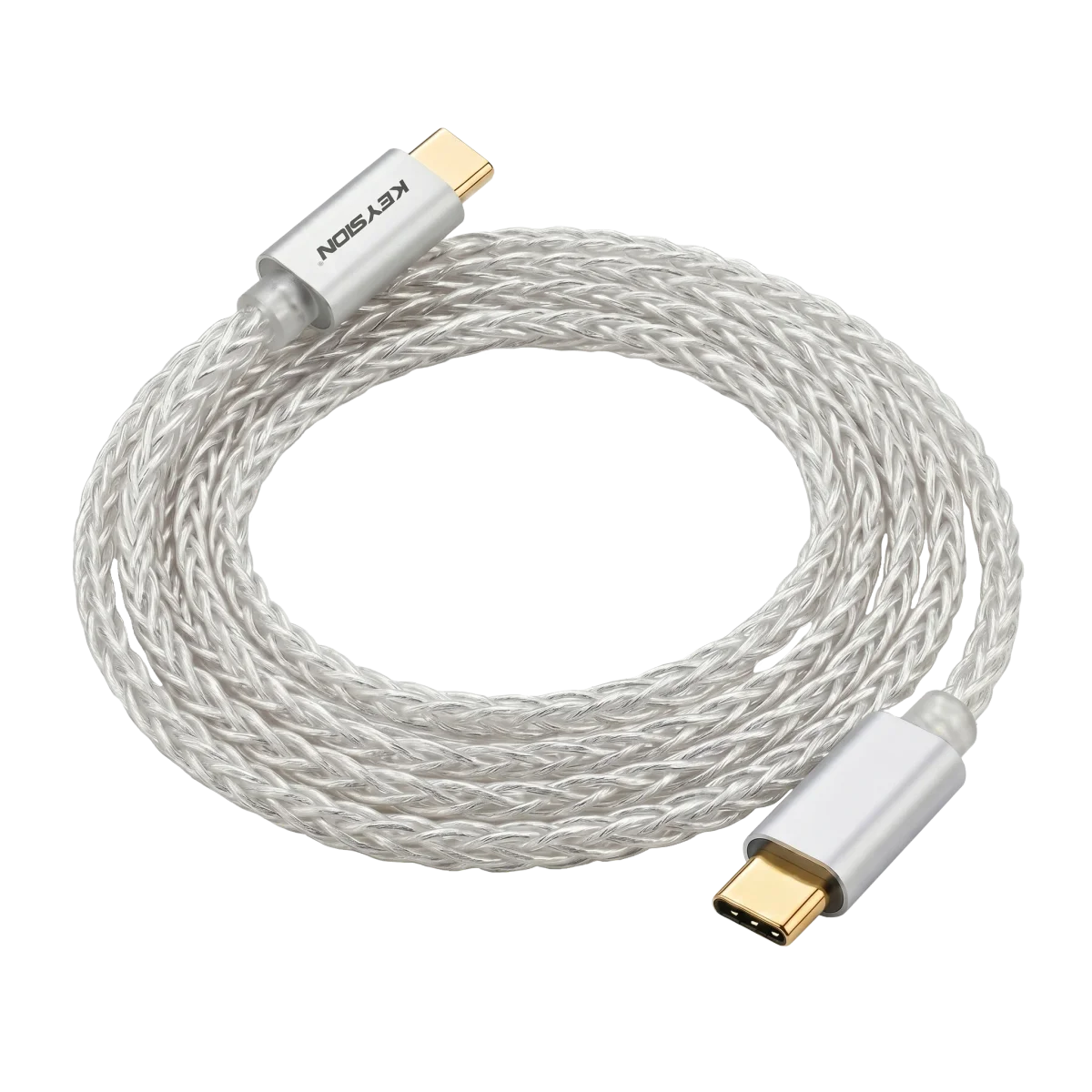
Cable choice matters too. Long runs, poor inner conductors, and bent connectors all add voltage drop, which is why the built-in phone cable or a short, thick standard OTG cable is the safe first test. To remove the cable variable entirely, a dedicated USB-C OTG line (for example KEYSION’s TypeC-to-TypeC audio cable, /product/kshf-ycx, 1 m, aluminum shell) takes one thing off the checklist.
Search the web and you’ll find “turn on USB debugging” everywhere, but most phones don’t need developer mode or USB debugging for audio; that’s for adb and file transfers. The working version: switch the USB connection from “charging only” to “file transfer (MTP)” or “transfer audio / USB audio”, and most dongles get recognized. A few brands (some Xiaomi, Honor, and early OnePlus firmware) don’t power third-party audio devices by default, so you’d open developer options and turn on “USB audio adapter / allow external audio devices”. So the plan is: change the transfer mode first, then try USB debugging if needed — debugging alone rarely fixes it, combine both and step through.
iPhones and iPads use a Lightning-to-USB camera kit or a powered adapter, and the system mostly hands audio to the device on its own, so those Android-style permission popups rarely appear. The catch is power: some older iOS versions or certain adapters don’t give an external DAC enough voltage, and you get “recognized but silent”. Another common trap is an adapter that’s “power-only / data-only” rather than “data + power”, which naturally shows nothing. iPhone owners’ order: switch to a MFi-certified cable marked for audio, plug into the port closer to the phone’s power side, and confirm the pinout supports OTG data.
A dongle’s port is spring-loaded, so how deep it sits and a loose adapter both affect the connection. Feel around: does the adapter wobble against the phone, and is there a clear “clicked in” step when you pull it? Pinout issues are sneakier — some “OTG cables” are really charge cables with only the two power pins and no data pins, made for charging, and a dongle naturally draws nothing. A simple test: can this cable move files or carry data to a pair of earphones? If not, it’s a charge cable, swap it; a cable marked OTG or for data is what fits a dongle.
Work through these in order, and most problems settle in the first three steps.
First, switch the USB connection method: plug in the dongle, pull down the notification bar, change “charging only” to “file transfer” or “audio transfer”, then play again.
Second, swap cable and port: use a short, standard USB-C cable marked OTG / data (for example /product/kshf-ycx), try another port on the phone, rule out contact loss and power drop.
Third, cross-check the gear: plug the same dongle into a different phone or try another pair of earphones. The problem shows up on one phone only after switching; if it’s the same everywhere, look at the dongle itself.
Fourth, go back to settings: on Android, open developer options and find the “USB audio adapter” switch; on iPhone, use a MFi-certified audio cable, then return to step one. Very few cases survive all four steps; for those, contact support and send the unit for testing instead of repeatedly plugging and pulling.
One line to end on: when a dongle won’t connect, treat it as a configuration issue first, not a broken device. Run the “switch transfer mode → change cable and port → cross-check → system settings” order and most silent cases resolve in the first two steps. Pair this with the Android connection guide (/blog/android-usb-otg-dac-guide) and the power-and-heat article (/blog/dongle-dac-battery-heat-guide) for a fuller picture of USB power delivery.
About the author: Compiled by the KEYSION audio lab; the steps draw on common devices and community test results, and exact switch locations vary by brand and OS version — take it as a reference, not a final word. If your dongle won’t connect, don’t panic; most cases cost nothing to fix.
FAQ
My dongle shows nothing when plugged into my phone — is it broken?
Mostly no. Check whether a USB connection notification appeared and switch “charging only” to “file transfer” or “audio transfer”; then try a different USB-C cable marked OTG / data. Only when it’s completely silent and the LED stays off do you look at power or the unit itself.
Does Android need USB debugging on for a dongle to work?
Usually not. Switch the USB connection to “file transfer (MTP)” and most dongles are recognized. A few brands don’t power external audio devices by default; you enable “USB audio adapter / allow external audio device” in developer options.
Why is there no sound with the same cable on my iPhone?
iPhones mostly use a Lightning adapter, and the issue is usually that the adapter is power-only / data-only with no data channel, or underpowered. Switch to a MFi-certified cable marked for audio and plug into the port on the phone’s power side, then retry.
Changed the cable and the phone, still nothing. Now what?
First confirm this gear and cable work on two other devices to rule out cable and system. If it’s the same on every phone, send the dongle for servicing. Repeated unplugging can hurt the contacts; one cross-check beats many hard tries.
Can an OTG charge cable connect a dongle?
No. Some OTG cables only have the two power pins and no data pins, so they’re for charging. Test: can this cable move files on a phone? If not, it’s a charge cable and a dongle gets nothing.
Related products
Related articles